Alerts & Thresholds
Get the right alert to the right person at the right time.
Server monitoring alerts work in two parts: thresholds determine when a metric is considered in trouble, and alert channels determine who gets notified and when. Both are configured per server from the Server Settings page.
Thresholds
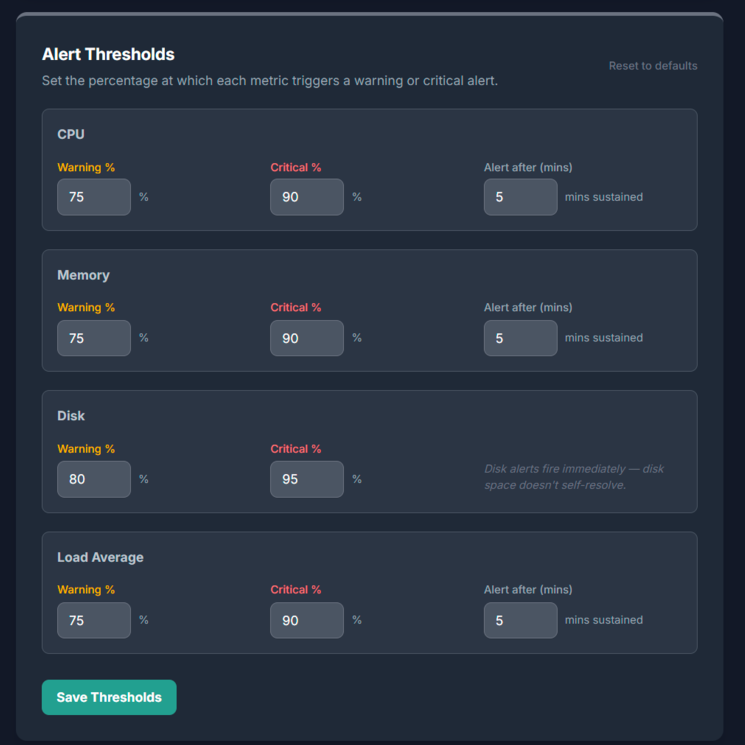
Each metric has two thresholds — warning and critical — expressed as a percentage. Default values are applied automatically when you add a server:
| Metric | Warning | Critical | Alert after |
|---|---|---|---|
| CPU | 75% | 90% | 5 mins sustained |
| Memory | 75% | 90% | 5 mins sustained |
| Disk | 80% | 95% | Immediate |
| Load Average | 75% of cores | 90% of cores | 5 mins sustained |
The "alert after" delay
CPU, memory and load average are designed to handle short spikes without triggering alerts. A brief spike to 95% CPU during a deployment or batch job is normal — a sustained 95% for 5 minutes is a problem.
The alert after setting controls how long a metric must remain in breach before an alert fires. Set it to 0 to alert immediately, or increase it to reduce noise on busy servers.
Load average as a percentage
Load average is normalised by CPU core count so your thresholds work consistently across server sizes. A 5-minute load average of 1.8 on a 2-core server equals 90% — critical. The same load on an 8-core server equals 22.5% — well within normal range.
Alert channels
Alert channels are configured per server under Server Settings → Alert Channels. Each channel has:
- › Label — A friendly name for the channel, e.g. "On-call dev" or "Manager".
- › Type — Email, Slack webhook, webhook URL, or SMS.
- › Destination — The email address, webhook URL, or phone number to send to.
- › Alert after (mins) — How many minutes into an active incident before this channel is notified. Set to 0 to notify immediately when a threshold is breached.
How escalation works
When a threshold is breached, SiteVitals opens an incident and starts a clock. Every minute, it checks which channels haven't been notified yet but are now eligible based on their alert after delay.
This means a channel with alert after: 0 fires as soon as the breach is confirmed. A channel with alert after: 30 fires only if the incident is still active 30 minutes later.
Each channel fires at most once per incident per severity level. If a warning escalates to critical, channels are re-notified at the new severity level.
Recovery notifications
When a metric drops back below its warning threshold, the incident closes and a recovery notification is sent to every channel that received the breach alert. Channels that hadn't yet fired (because the incident resolved before their delay elapsed) do not receive a recovery notification.
Warning vs critical
Both warning and critical thresholds trigger the same alert channels. The difference is in how the incident is labelled and how the email is worded — warning alerts give you time to investigate, critical alerts indicate an active problem requiring immediate attention.
If a metric starts at warning and escalates to critical while the incident is still open, channels that already received a warning alert are re-notified with a critical alert.
Adjusting thresholds for your server
Default thresholds work well for most general-purpose servers. You may want to adjust them if:
- › Your server routinely runs at 80–85% CPU during normal operation (e.g. a media transcoding or machine learning server) — raise the warning threshold to avoid constant noise.
- › You have a small disk (under 20 GB) and want earlier warning — lower the disk warning threshold to 70%.
- › You're running a high-traffic database server where memory utilisation above 90% is expected and healthy — raise the memory thresholds accordingly.
- › You've just set up a new server and want to observe its normal patterns for a week before enabling alerts — set a high threshold temporarily, then dial it in.
Thresholds can be changed at any time from Server Settings → Alert Thresholds without reinstalling the agent. A Reset to defaults option is available if you want to start fresh.