The first person to know your site is down should be you, not a customer. That's the whole point of alerts. But "tell me when something goes wrong" turns out to have a few more questions hiding inside it - who needs to know, about what, how quickly, and do they really need to know at 3am?
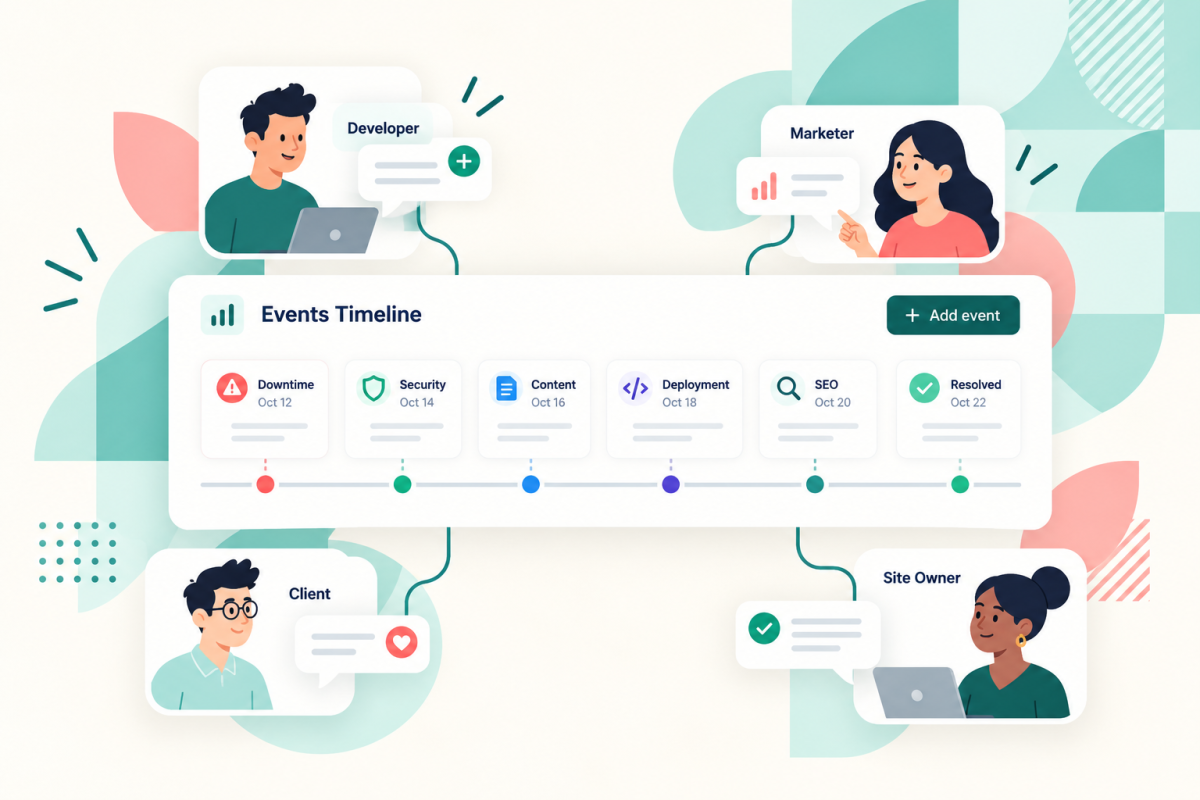
Earlier this month our own site went down at 12 minutes past 3 in the morning and was back up 1 minute and 27 seconds later. It's worth having on the record (and it's on our timeline), but it's not worth waking anyone up for. So this post goes through how to set alerts up so the right people hear about the right things, and what you get on a free account compared with a paid one.
Finding your alert settings
Every page you monitor has its own settings, alerts included. There are two ways to get there:
- click "edit" next to the name of the page in your list of pages
- or, when you're looking at a report for a page, click the cog icon at the end of the row of report icons in the top right
You'll land on a page with everything for that one site - the basic details, uptime monitoring, notifications and a few other bits. Each section has its own Save Changes button, so remember to click the one under the section you've just changed.
Uptime monitoring
This is where you switch uptime checks on or off for the page, and choose how we check whether the site is up.
- Basic check looks at the HTTP status code (the number a server sends back with every page - 200 means "all fine, here it is"). If we get an error code or nothing at all, the site is down. This is available on every account, including free ones.
- Advanced check goes a step further and checks for specific content on the page. That can catch the awkward situations where a server says "all fine", and it is up, but what it's showing is a blank white screen or a database error. This one is only available on paid plans with integrity scanning.
Notification channels
A channel is just somewhere alerts get sent - an email address (or a few), or a little red bell notification inside your SiteVitals account (that's what we mean by "in-app notifications"). You can have as many channels as you like for each page you're checking, and each one has its own settings. Click "Add channel" to make a new one, or "Remove" to get rid of one.
For each channel you set:
- a name, so you know which is which (just kinda your reference note)
- the channel type, such as email or in-app notification
- for email, the addresses it goes to - you can add more than one, separated by commas
- which alerts it receives
- whether it's switched on
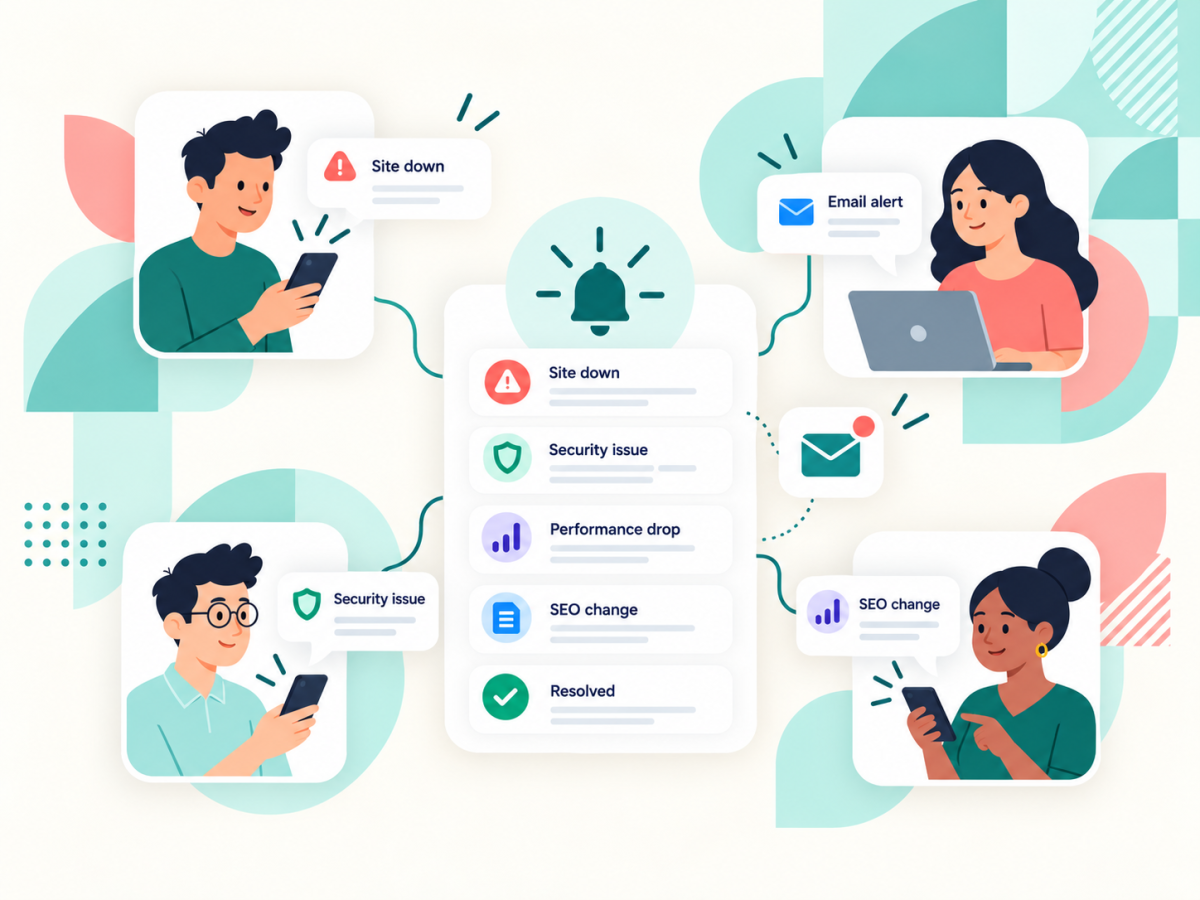
Splitting things into channels is what lets you be choosy. Your developer might want security and broken asset alerts but not content changes. Your marketing person might want SEO and content changes but couldn't care less about DNS. And you might want everything, but by email rather than an in-app notification you won't see without leaving your dashboard open.
Choosing which alerts a channel gets
Each channel has a set of tick boxes for the types of alert it should receive:
- Uptime - your site has gone down
- Security - something's been flagged in your security checks
- Domain Expiry - your domain name is coming up for renewal
- SSL Certificate Expiry - the certificate behind the padlock and the https in your address is about to run out
- DNS Record Changes - something has changed in your DNS (the internet's address book, which tells the world where your website and email live)
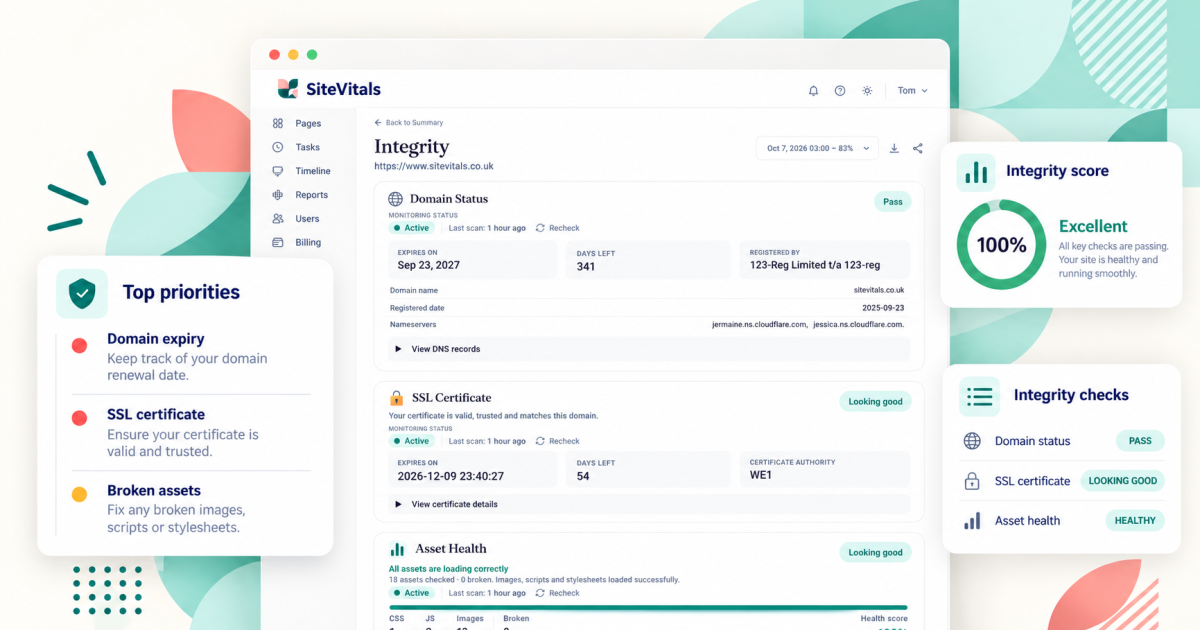
- Broken Assets - images, scripts or other files on your page have stopped loading
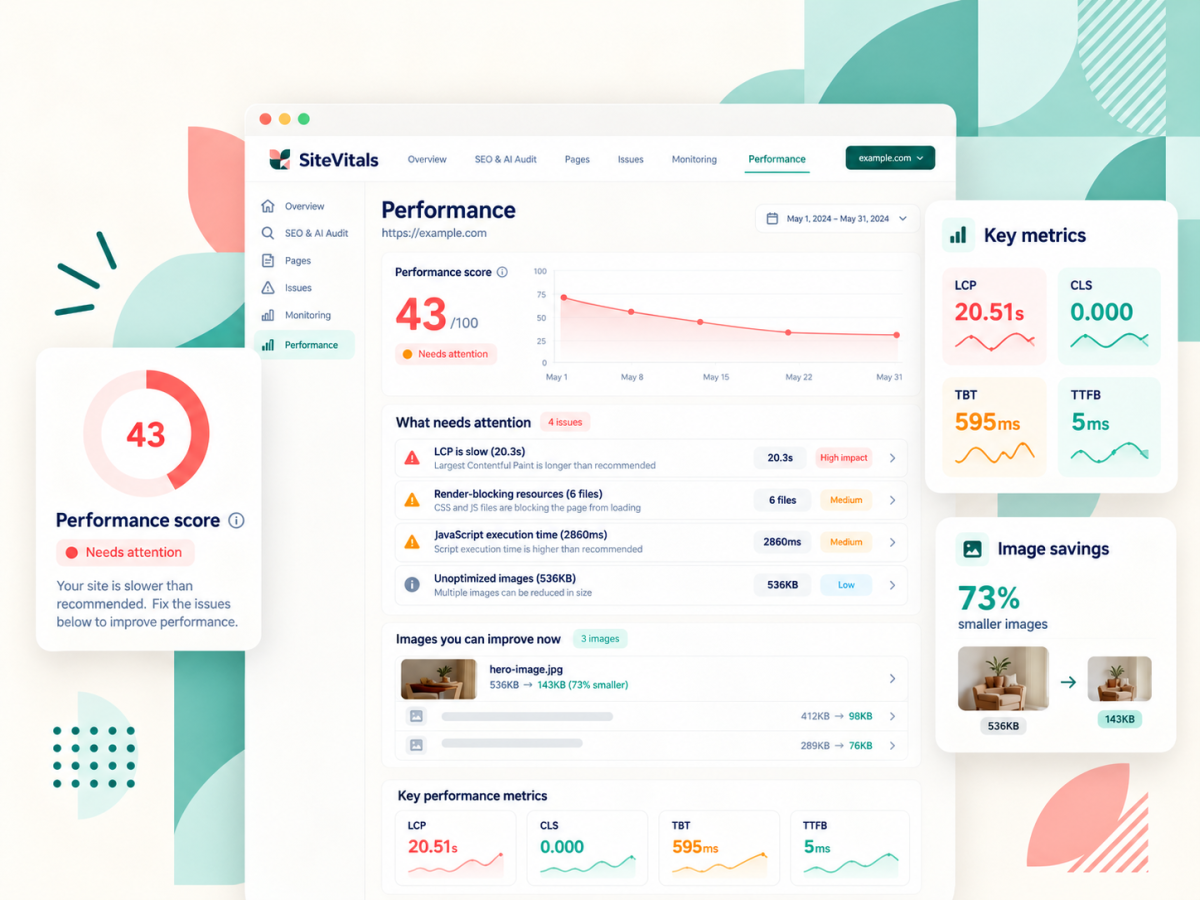
- Performance Issues - your page speed has taken a turn for the worse
- SEO Status - something's changed in your SEO checks
- Content Changes - the content of your page has changed
On a free account, Uptime is the one you can tick - the rest show "Upgrade Required". On a paid plan they open up, and which ones depends on the plan you're on (so if you're on a plan that includes SEO monitoring, you'll be able to switch on SEO alerts, for example).
Uptime alert delay
When a channel has Uptime ticked, you get an extra setting - the uptime alert delay. It's the number of minutes the site has to be down before that channel gets told. Leave it empty or set it to 0 and the alert goes out straight away.
This is the answer to the 3am problem. Because the delay is set per channel, you can have in-app alerts fire immediately (so there's always a record) but only email someone if the site's been down for, say, five or ten minutes. Short blips still get logged. They just don't get anyone out of bed.
Switching a channel off without deleting it
Each channel has an Enabled switch. Turn it off and that channel stops getting alerts, but all its settings stay put. Handy if someone's on holiday, or you're doing planned maintenance and know the site's going to be up and down for an hour.
Ignoring A and AAAA record changes
This one's a bit specialist, so skip it if it doesn't apply to you. A and AAAA records are the bits of your DNS that point your domain at your server's IP address (the server's number on the internet). Some sites sit behind a load balancer or an autoscaling setup (where traffic is spread across several servers that come and go), and their IP addresses change all the time as part of normal running. Without this switch, every one of those changes would trigger a DNS alert.
Turn it on and we'll ignore A and AAAA changes, but you'll still get alerts if your NS records (which say who runs your DNS), MX records (which say where your email goes) or any other records change. If your hosting is a normal single server, leave it off.
Free and paid at a glance
On a free account you get:
- uptime monitoring with the basic check
- uptime alerts, by email or in-app
- as many notification channels as you need, each with its own uptime alert delay
On a paid plan you can also have:
- the advanced uptime check, which looks for specific content on the page (on plans with integrity scanning)
- alerts for security, domain expiry, SSL certificate expiry, DNS record changes, broken assets, performance, SEO and content changes, as well as server and cron job monitoring, depending on your plan
You can see exactly what's in each plan on our pricing page.
Reports across your whole portfolio
Everything above is set page by page. But there are also two email reports that cover your whole portfolio - every site in your account - and you manage those in one place. Click your name in the top right, then Settings.
- Monthly Health Reports - a monthly email summary of performance, security and uptime for all your sites. Everyone gets this by default, on free and paid accounts, so you don't need to do anything to start receiving it. If you'd rather not have it, untick it.
- Weekly Health Digest - a weekly summary of your website health. This one's available on paid plans, and it's opt-in, so you'll need to tick it to start getting it.
These two do slightly different job to the alerts. Alerts are for "something needs looking at now". The reports are the step-back view - how everything's ticking along overall - and they're handy for spotting slow drifts that never set off an alert, or for forwarding to a client or your boss so they can see things are being looked after.
Who can change these settings
If you've given other people access to your account, they can see your reports and add to and update your timeline, but they can't change your page settings or the alerts you've set up. So you can let a developer or a client in without worrying they'll switch off the downtime alert that tells you something's broken. There's more on that in our post about sharing your timeline.
Other things on this page
While you're on a page's settings, you'll also see:
- Basic Details - the name you use for the page in SiteVitals (it doesn't change anything on your website), the URL we check, your own notes, the platform it's built on and which property it's grouped under. Be careful with the URL, because changing it changes the page we run checks against.
- Google Search Console - connecting your Google account will pull in clicks, impressions, click-through rate and average position for the page. This is in private beta at the moment, so you can request early access if you'd like to try it.
- Technologies - the software we've spotted on your site (your platform, server, plugins and theme), which you can add to or edit yourself. It's used for version tracking and digest reports.
- Stop Monitoring This Site - this deletes the page and its settings and identifiable uptime history for good, so it can't be undone. (To be completely transparent, aggregated and anonymised uptime data may be kept for benchmarking and research.)
Getting it set up
If you only do one thing, have a look at your channels and make sure the right people are getting the right alerts. A good starting point is an email channel with a short uptime delay for whoever needs to act when the site goes down. Then add more channels as you work out who else wants to know what.
And if anything on the page doesn't make sense, drop us a line and we'll explain it (and probably add it here too).

By Lisa Freeman · Co-Founder
Industry veteran with 25+ years experience in web development and client experience.
Share this post
Stay in the loop
Get new posts delivered to your inbox. No spam, unsubscribe any time.