When something goes wrong on a website, the first question is almost always "what changed?" And the answer, more often than not, is something someone else did. A developer pushed an update, a plugin updated itself overnight, a colleague tweaked the homepage, a client "just changed one little thing". After a couple of decades looking after other people's websites, I can tell you the hard part is rarely fixing the problem. It's working out what happened, and in what order, when everyone remembers it slightly differently.
That's what the SiteVitals timeline is for. (You might have seen it called Change Intelligence - that's the idea behind it, but Events Timeline is the plainer name for what it is.) And it works best when everyone who touches your site can see it and add to it, which is why this post is mostly about sharing it, and what the people you let in can and can't do.
What's on the timeline
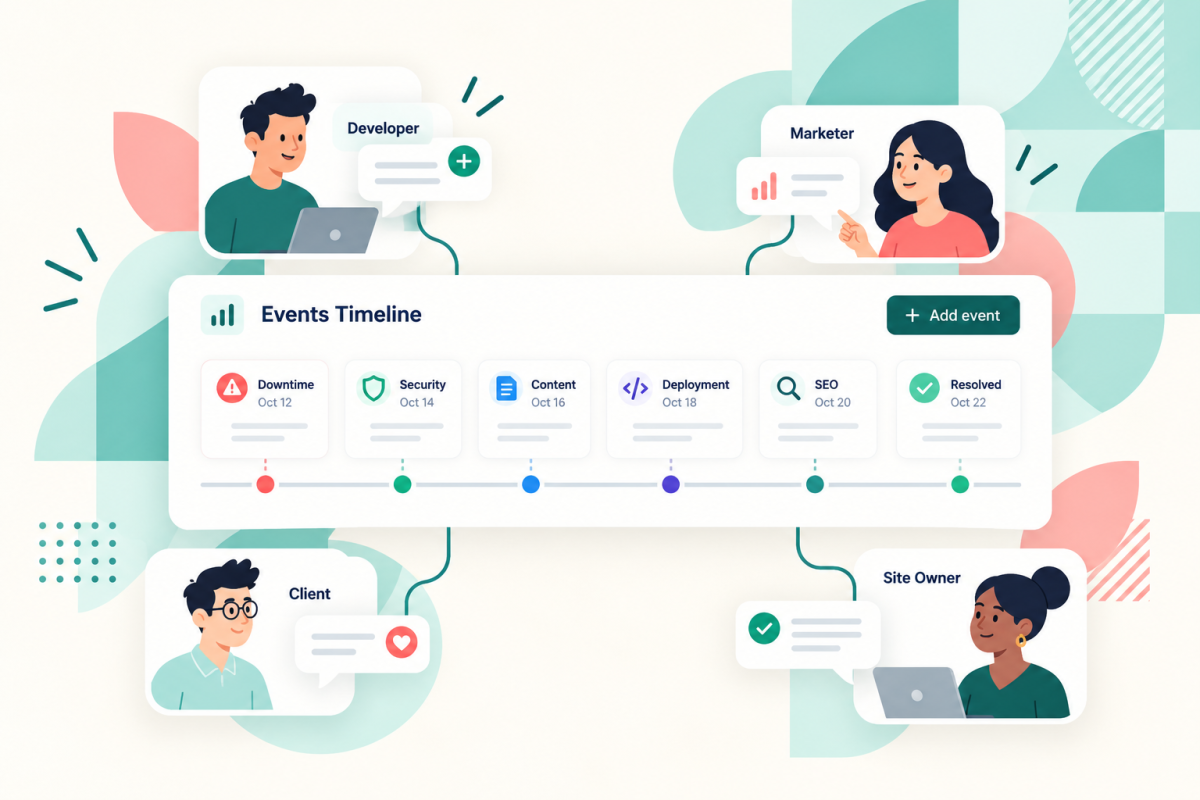
SiteVitals adds things to the timeline automatically as it spots them - downtime and recoveries, security findings, SEO changes, performance shifts, integrity warnings (certificates, domains, broken files) and content changes. Each one is dated and timed, so you can see the order things happened in.
Then there's the stuff SiteVitals can't know about. Click the + button and you can add your own events - a deployment, a content update, a campaign launch, a maintenance window. That's what turns it from a list of alerts into a proper history of your site.
Letting other people in
You can give other people access to your account - your developer, your marketing team, a client, the freelancer who looks after your SEO. And the important bit is what that access does and doesn't let them do.
People you give access to can:
- see your reports
- add their own events to the timeline
- update the timeline, like marking things as resolved
But they can't:
- change your page settings
- change the alerts you've set up
It means your developer can log a release the moment they push it, without being able to switch off the downtime alert that would tell you if it broke something. A client can look through the reports without accidentally changing what's being monitored. You stay in charge of the settings, and everyone else gets to contribute to the record.
(It's also a much nicer conversation than the alternative. "Can you add a note when you deploy?" is an easy ask. "Here's my login" isn't.)
If you're an agency, it works the other way round too. Give your client access and they can see what's been happening on their site between check-ins - what's been flagged, what's been fixed, what's resolved - without being able to fiddle with the monitoring you've set up for them.
Filtering the timeline
A busy site builds up a lot of events, so you can filter the timeline down to what you're looking for - by type, category, severity and whether something's been resolved. So if you only want to see what's critical and still open, or just the security events, you can.
Marking things as resolved
Every event can be marked as resolved once it's been dealt with. It sounds small, but it's what stops a timeline turning into a list of worries. Anyone looking back later - you, a colleague, a developer who's just joined - can see straight away what's been handled and what hasn't, rather than having to ask.
The free WordPress plugin
If your site runs on WordPress, there's a free plugin that sends your updates straight to the timeline. Every time WordPress itself, a plugin or a theme updates, it records:
- what was updated
- which version it moved from and to
- whether it was a major, minor or patch update (a big change, a smaller one, or a small fix)
- whether you did it by hand or WordPress did it automatically
- whether it worked or failed
Why does that matter? Because automatic updates are a good idea, but they're also a classic reason a site starts misbehaving with nobody having touched it. With the plugin connected, the update shows up on the timeline right next to the downtime alert or the performance drop it might have caused.
It connects to your SiteVitals account in one click (no copying and pasting API keys), you'll need a free SiteVitals account, and it only sends details about the update itself - no site content, user data or personal information. It only runs while WordPress is updating, so it won't slow your site down. You can download it from the WordPress plugin directory.
Getting the most out of it
Have a think about who touches your site and give them access - your developer, whoever writes your content, the freelancer who looks after your SEO. Then ask them to add a quick note to the timeline when they change something. And if you're on WordPress, install the plugin so updates log themselves.
It won't stop things going wrong. But next time something does, you'll have the order of events in front of you instead of a group chat full of "not me". There's more about how it all works on the Events Timeline page, or drop us a line if you've got questions.

By Lisa Freeman · Co-Founder
Industry veteran with 25+ years experience in web development and client experience.
Share this post
Stay in the loop
Get new posts delivered to your inbox. No spam, unsubscribe any time.