Most website monitoring asks one question - is the site up? And that's a good question (it's why uptime monitoring is free on SiteVitals, because we think everyone should know the answer). But a site can be up, loading perfectly and sending back a happy 200 (the code a server sends to say "all fine, here's your page") while saying something completely different to what it said last week.
Maybe someone edited the homepage and deleted the paragraph that explains what you do. Maybe a plugin update changed your page title. Maybe a developer ticked a box that tells Google to ignore the page. None of those will take your site offline, so none of them will set off an uptime alert, and you might not find out until someone mentions it or the enquiries start drying up.
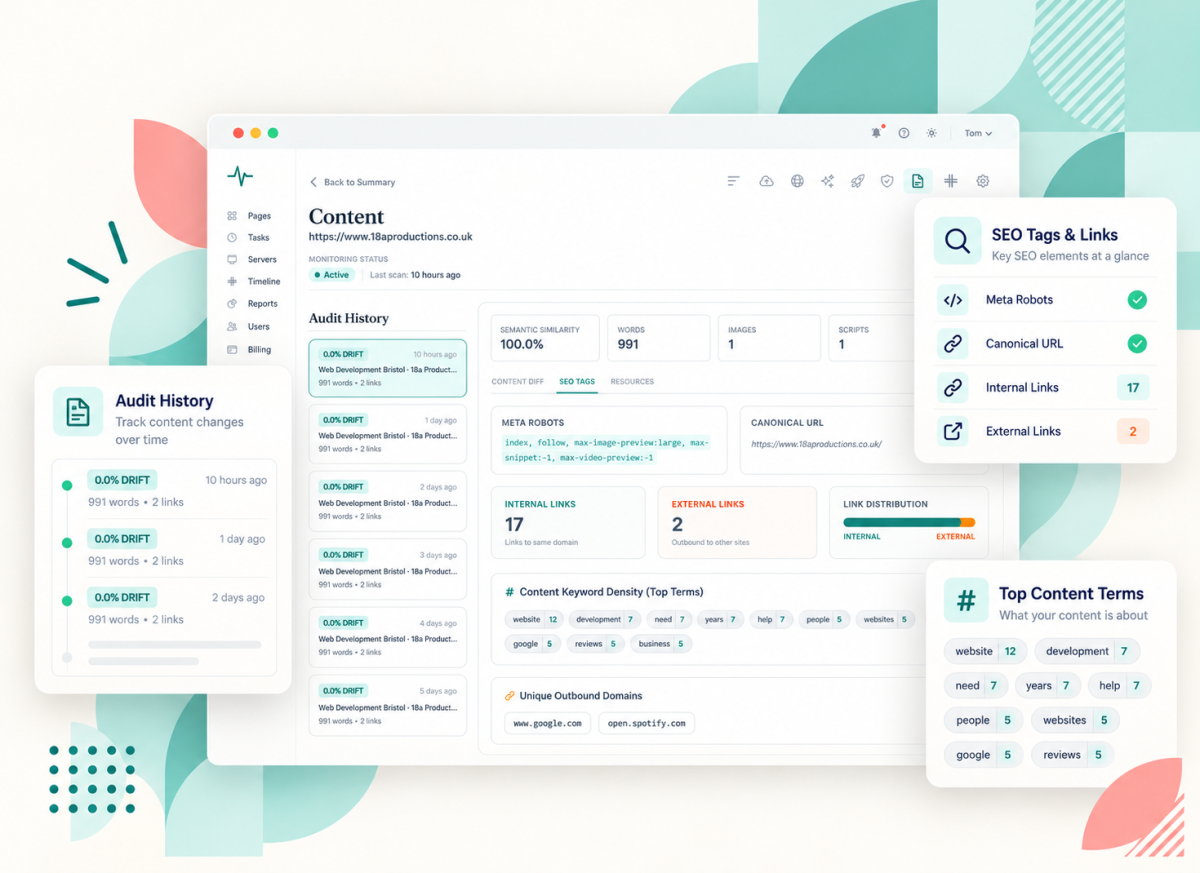
That's the gap the Content report fills. It keeps a running record of what each monitored page says and how it's put together, so you can see what's changed and when - even if you weren't the one who changed it. Here's what's covered:
- How the monitoring works
- The content drift score
- What we record on every scan
- Looking back through the history
- When it's useful
- What it doesn't do
How the monitoring works
On a regular schedule (how often depends on your plan), SiteVitals visits each page you're monitoring and:
- Reads the page (respecting your robots.txt, so if you've told bots to stay out of a page, we stay out too)
- Pulls out the important bits - the main text, title, main heading, links, SEO tags and the outside resources the page loads
- Compares all that with the previous scan and works out how much has changed
- Saves the whole lot as a snapshot you can look back at later
- Shows the results in your dashboard
If a scan fails, it tries again.
The one thing to know up front is that the first scan is your baseline. We can only spot changes from the moment monitoring starts, because there's nothing to compare that first snapshot against - so anything that changed before then won't show up.
The content drift score
Rather than just telling you something has changed, we give each scan a content drift score - a percentage showing how far the page has moved on since last time. A typo fix will barely register. A rewritten homepage will.
The score is built from four things, weighted like this:
- The main body text - 55%
- The page title - 20%
- The H1 (the main heading on the page) - 15%
- The word count - 10%
So a completely new title moves the score a lot more than tweaking one sentence on a long page, and a rewrite of the main content moves it most of all.
(The technical bit: for shorter bits of text we use Levenshtein distance - basically, how many single-letter edits it takes to turn the old version into the new one. For longer content we use a word-based Jaccard comparison, which looks at how much vocabulary the two versions share.)
That second method has a side effect worth knowing about. Because it's comparing words rather than reading for meaning, moving paragraphs around without changing the words won't make the score jump much. You'll see similarity labelled Semantic Similarity in the dashboard, but to be clear, it's measuring how alike the text is, not using AI to understand what it means.
What we record on every scan
The main content
We pull out the main text of the page and leave out the bits that appear everywhere - the navigation, header and footer, plus code like scripts and styles. That way a new link in your footer doesn't look like a change to every page on your site. We store up to 3,000 words per page, which is plenty for most pages.
Title and main heading
We record the page title (the line in the browser tab and, usually, the headline in Google) and the H1. These are the two clearest statements of what a page is about, which is why they carry so much weight in the drift score.
SEO settings
We also record the canonical URL (the tag telling search engines which address is the main version of the page) and the meta robots tag (instructions to search engines, like noindex - don't list this page). A change to either can take a page out of Google without anything looking different on screen.
These are kept in the history for you to check, but they're not part of the drift score, so a page could be marked noindex and still show a drift of zero. If that worries you (it'd worry me), the SEO report checks indexing status on its own.
Links
We count the internal links (to other pages on your site) and the external ones (to other sites), and list the external domains the page links to. So if a page suddenly starts linking to a site you've never heard of, you can see it. (That's one of the classic signs of a hacked site, as it happens - spammy outbound links slipped into the content.)
Third-party resources
Most pages load things from other websites - fonts, analytics scripts, chat widgets, images from a CDN. We record the domains your page's scripts, stylesheets and images come from, which gives you a clear picture of who else your page depends on and makes it easier to spot something new. We record where they come from rather than looking inside the files themselves (the Security report is the one that reads through your page's code for risky patterns).
Word count and top terms
And we record the word count and the ten most-used significant words on the page (so not little words like "the" and "and"). You'll see this as keyword density in the dashboard. It's a quick snapshot of what the page talks about most, which is handy for noticing when a page has wandered off-topic. It's a basic count, though, not a judgement on your SEO.
Looking back through the history
Every successful scan is saved, so over time you build up a history of each page. You can pick any earlier scan and see what the page said and how it was set up at that point - title, heading, main text, SEO tags, links and resources.
This is the bit that earns its keep when something's gone wrong. Instead of "I'm sure that paragraph used to be there", you can go back, find the scan where it disappeared and know roughly when it happened (which usually tells you who to ask).
The Content Diff view puts the title and H1 side by side with the previous scan, so changes there are easy to spot. For the main body text, it shows you the full text from the scan you've picked rather than highlighting each word that's been added or removed, so for bigger edits you'll be comparing by eye.
When it's useful
A few situations where the Content report comes into its own:
- Someone edits the homepage and accidentally deletes or rewrites key copy - the drift score shows it, and the history shows what it used to say
- A page title or main heading changes unexpectedly, perhaps after a theme or plugin update
- A page gets marked noindex, or its canonical URL changes, and you need to know when it happened
- A new third-party script starts loading on the page
- A page starts linking out to domains you don't recognise
- A page is rewritten and you want a record of the before and after
What they've all got in common is that your site keeps working. Uptime monitoring would tell you everything's fine, because as far as the server's concerned, it is.
What it doesn't do
We'd rather be upfront about where the edges are, so you know what you're looking at:
- It can't see changes from before monitoring started - the first scan is the starting point
- It doesn't highlight line-by-line additions and deletions in the main text
- It tracks which domains your resources come from, not every individual file, and it doesn't look inside those scripts
- Canonical and noindex changes are recorded, but they don't affect the drift score
- Moving content around without changing the words won't register as much of a change
- The top terms are a word count, not an SEO quality score
What to do with it
The easiest habit is to have a look at the Content report after anything changes on your site - a plugin or theme update, a new developer, a redesign, a busy week of edits from the team. Check the drift scores, and if a page has jumped more than you'd expect, open the earlier snapshot and compare.
And if you're ever looking at a page thinking "that's not what it used to say", this is where to find out what it did say and when it changed.
If anything on the report doesn't make sense, drop us a line and we'll explain it (and probably add it here too).

By Lisa Freeman · Co-Founder
Industry veteran with 25+ years experience in web development and client experience.
Share this post
Stay in the loop
Get new posts delivered to your inbox. No spam, unsubscribe any time.