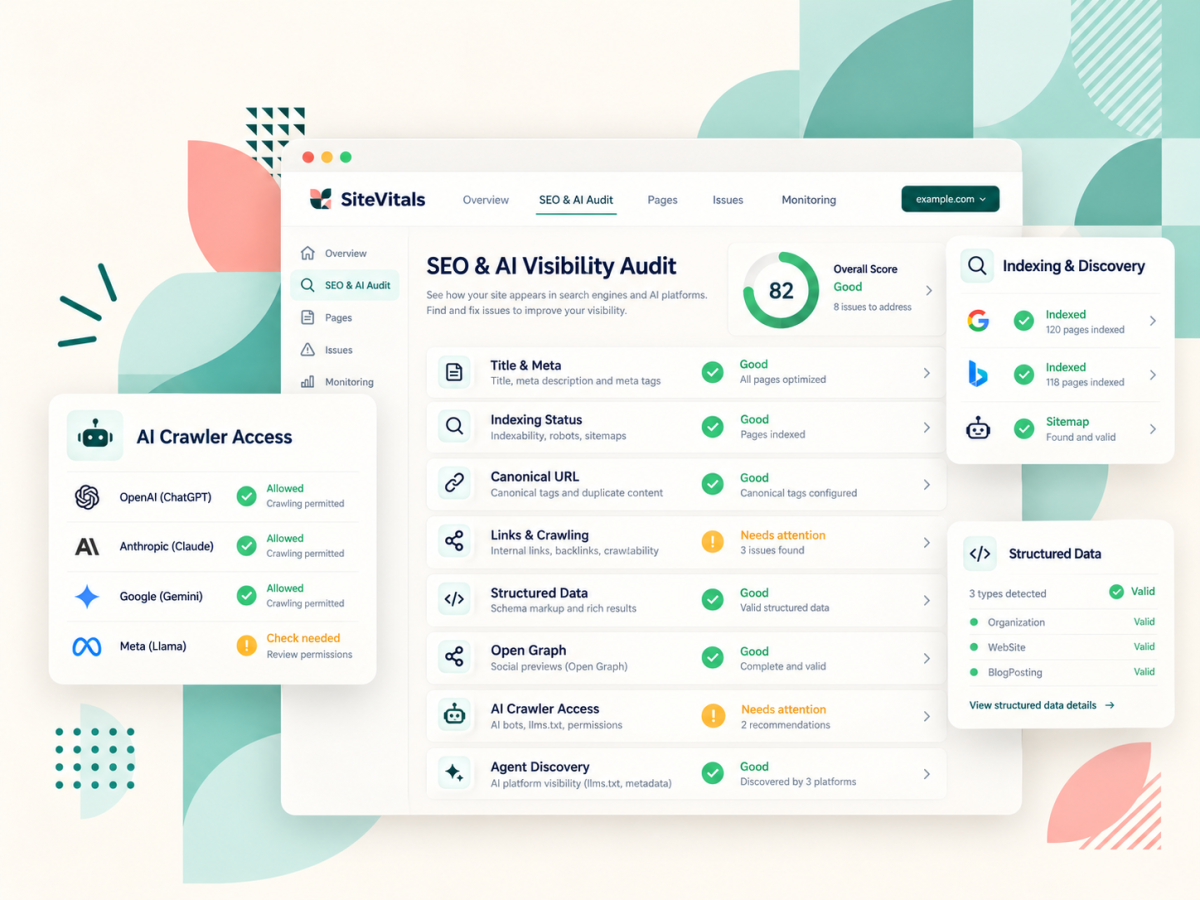
We say a lot that SiteVitals explains everything in plain English. And every time I say that, I stop and question myself... because the minute you open the SEO and AI visibility dashboard you're looking at words like canonical, schema and Open Graph, and there's no getting around the fact that those are jargon. We can't make this stuff simple (it isn't), but we can do our best to explain what each check is looking at and why it's on the page.
So this is that explanation. It goes through every check in the SEO & AI Visibility audit - what we're looking for, why it matters and, just as importantly, when a flag isn't something to worry about. It's long, so don't feel you need to read it in one go. Skim the headings, find the check that's bugging you and start there.
(Looking for page speed and Core Web Vitals? Those live in the Performance dashboard, which is a different beast and needs its own article.)
Here's what's covered:
- How to read your results (start here - it'll save you a lot of worry)
- The SEO basics
- Links, crawling and how your site hangs together
- Images and social sharing
- Structured data
- How your content is built
- AI and agent discovery
- What to do with it all
How to read your results
The most useful thing to know before you scroll through your results is that we don't treat every check the same. Some are scored, which means a fail or a warning there is something we think is worth fixing. But plenty of others are informational or contextual - we're telling you what we found so you can decide whether it's what you intended, not marking you down for it.
So you'll see a few different kinds of result:
- Scored checks, where a fail or warning counts against the page (a missing title, for example)
- Informational checks, where we report what we found without scoring it (title length, or the newer AI-facing files)
- Contextual checks, which point out things that might deserve a human look but aren't defects in themselves
- Unverifiable, when something on your server (often a security firewall) stopped us checking properly - which isn't the same as a fail
- Not applicable, when a check doesn't fit the page (author details on a page that isn't an article, say)
The other thing worth saying plainly is that none of these checks is a magic ranking lever. Google and the AI tools look at a HUGE number of things, most of which nobody outside those companies can see, and fixing everything on this page won't guarantee you a top spot or a mention in ChatGPT. What it does is get rid of the avoidable stuff that makes your site harder to find, read and trust.
The SEO basics
These are the foundations - the things search engines have looked for since long before anyone was talking about AI, and still the first place to look if a page isn't showing up.
HTTP to HTTPS redirect
Website addresses used to start with http://, and these days they should start with https:// (the s stands for secure - it means the connection between your visitor and your site is encrypted). We check that if someone types or clicks the old http:// version of your address, they're automatically sent to the secure one. That way visitors and search engines all land on one version of each page, rather than two copies floating around.
If a security service in front of your site (a firewall, or a CDN - content delivery network, basically a layer that sits between your visitors and your server) blocks us from checking, we mark it as unverifiable rather than failed. That usually means it needs checking by hand, not that something's broken.
Title tag
The title is the line that shows in the browser tab and, usually, as the clickable headline in Google. It's one of the clearest signals of what a page is about, so a page without one is a genuine fail.
We also look at length, and flag titles outside roughly 30 to 60 characters. But that one's informational, not a mark against you. Google does cut long titles off in results, so it's worth a look, but there are plenty of good reasons for a title to run a bit long or short.
Meta description
This is the short summary that can appear under your title in search results. We check that one exists and that it's somewhere around 70 to 160 characters, which is long enough to say something useful and short enough not to get chopped off.
(Will Google always use it? No - it often rewrites the snippet based on what someone searched for. But a decent description gives it a good option to pick from, and when it does use yours, it's your words doing the selling rather than a random chunk of the page.)
H1 structure
The H1 is the main heading on the page (H for heading, and 1 because it's the top level). We check there's one, and only one. Google has said it copes fine with pages that have more than one, so this isn't about a penalty. It's more that a single clear main heading makes it obvious - to people and to machines - what the page is about, and it's really common for themes and page builders to scatter H1s around or leave them out altogether.
Indexing status
This checks whether your page is telling search engines to leave it out. There are two main ways that happens - a noindex tag in the page itself (an instruction that says don't list this page in search results), or a rule in your robots.txt file (a small text file on your site that tells crawlers - the bots search engines use to read the web - where they can and can't go).
Being blocked isn't automatically wrong. Thank-you pages, login areas and staging sites often should be. But it's one of the most common ways a perfectly good page goes missing from Google, often because a setting got switched on during a build and never switched off again, so it's worth checking every time it flags.
(The technical bit: robots.txt stops a page being crawled rather than strictly indexed, so a blocked page can occasionally still turn up in Google with no description. If you want something out of search for good, noindex is the more reliable tool - but the page has to be crawlable for Google to see the noindex.)
Canonical URL, language and favicon
Three small housekeeping checks bundled together.
The canonical URL is a tag that tells search engines which address is the main version of a page. It matters because the same page can often be reached several ways (with or without www, with tracking bits stuck on the end of the link, and so on), and you want all the credit going to one. We check that the canonical points at the page we ended up on, allowing for small harmless differences like a trailing slash.
The language attribute is a tiny bit of code that says what language the page is written in, which helps browsers, screen readers and search engines. And the favicon is the little icon in the browser tab - it also shows next to your site name in Google's results, so a missing one is more noticeable than you'd think.
Viewport meta tag
The viewport tag is a line in your page's code that tells phones and tablets to fit the page to the screen they're on, rather than showing a shrunk-down desktop version you have to pinch and zoom. We check it's there and that it includes width=device-width, which is the bit that does the work. Almost every modern theme includes it, so if this fails it's usually a sign of an older or very custom build.
Links, crawling and how your site hangs together
This group is about whether people and search engines can get around your site easily, and whether everything the page loads is safe.
Broken links
We follow the links on the page and flag any that don't work - the ones that lead to an error page instead of where they promised. Broken links are annoying for visitors (and a bit of a knock to trust, if we're honest), and they can stop search engines getting through to pages you want found.
You'll also see a breakdown of the links we found: internal (to other pages on your site), external (to other sites), mailto (email links), anchor links (which jump to a spot on the same page) and JavaScript links. That's mostly there to help you see what the page is made of.
Mixed content
If your page is secure (https) but still loads some of its files - images, scripts, stylesheets - from insecure http addresses, that's called mixed content. Browsers don't like it, and depending on the file they might block it outright (so something on your page just stops working or disappears) or show your visitor a warning that the page isn't fully secure. It's often left over from a site moving to https years ago, with a few old image links that never got updated.
XML sitemap quality
A sitemap is a file (usually at yoursite.com/sitemap.xml) that lists the pages you'd like search engines to know about. It'd be easy to stop at "does it exist?" but we go a fair bit further, because a sitemap that exists but is full of broken or redirecting links isn't doing you much good.
So we check whether we can find it, whether your robots.txt points to it, whether it opens and reads properly, whether it has any pages in it and whether the page we're scanning is listed. Then we look at what's inside - dead URLs, a mix of http and https, addresses from a different domain, duplicates, and whether the lastmod dates (the "last updated" date for each page) look sensible.
(The technical bit: really large sitemaps are checked up to a set limit rather than every single URL.)
Internal link quality
Internal links are the links from one page of your site to another, and they do two jobs - they help visitors find their way around, and they show search engines which pages are related and which ones matter. Rather than just counting them, we look at how useful they are.
That means checking whether the page links to other pages at all, whether some of those links sit within the actual content (not only in the menu and footer), whether the anchor text (the clickable words) says something meaningful rather than "click here", and whether any links are hard for crawlers to reach. We also flag messy URLs, links that lead nowhere, pages with a massive number of links, and navigation that only works through JavaScript in a non-standard way.
Images and social sharing
Image alt text
Alt text is a short written description attached to an image. Screen readers read it out for people who can't see the image, and search engines use it to understand what the picture shows. We count your images, flag any that are missing alt text and give you a list so you can find them.
The nuance here is decorative images. A background swirl or a divider line doesn't need describing, and the correct thing to do is give it empty alt text (alt="" in the code), which tells screen readers to skip it. We count those separately, so you're not told off for doing the right thing.
Open Graph and social metadata
When someone shares your link on LinkedIn, Facebook, WhatsApp or Slack, the preview card that pops up (title, description, picture) comes from a set of tags called Open Graph. Without them the platform has to guess, and it doesn't always guess well. We check for the four core ones - og:title, og:description, og:image and og:url.
You might also see a note about Twitter/X card tags. If your Open Graph tags are complete we treat those as optional, because X can fall back to Open Graph anyway.
Structured data
This is the most jargon-heavy part of the dashboard, so let's start with what it is. Structured data (often called schema, after Schema.org, the shared vocabulary everyone uses) is extra code on your page that describes it in a way machines can read without guessing. Your page might say "Hi, we're Smith & Co, a bakery in Leeds" in normal words. Schema says the same thing as labelled facts - this is an organisation, its name is Smith & Co, it's a bakery, it's in Leeds.
Search engines use it for things like star ratings and event dates in results, and it gives AI tools a clear, explicit description to work from rather than leaving them to interpret your page. Most of our checks here are about whether it's there, whether it's correct and whether it's joined up properly.
Schema validation
We check whether your page has structured data at all, and if it does, whether each block has errors (things that are broken), warnings (things that are probably wrong) or optional opportunities (things you could add if they're relevant to you). We also note whether you're using FAQ or Q&A markup, or Speakable (a type of schema that marks sections suited to being read aloud by voice assistants).
Title and WebPage schema consistency
Your page has a title in its normal HTML, and if it has WebPage schema, that has a name too. We check the two broadly agree. They don't need to match word for word, but if your title says "Wedding photography in York" and your schema says "Home", the page is giving two different answers to "what is this?"
Entity disambiguation
An entity is just a thing - a person, a business, a place, a venue. Disambiguation means making it clear which one you mean (there are an awful lot of businesses called something like Smith & Co). We check whether your schema clearly identifies the people, organisations and places the page is about.
We also look at two optional extras. sameAs links point to the same entity somewhere else, like your LinkedIn page or a Wikipedia entry, which helps machines confirm they've got the right one. knowsAbout lists the topics a person or organisation is expert in. Neither is required, and whether they make sense depends on the type of page, so we check they're appropriate and verifiable rather than telling everyone to add them.
Author and publisher chain
On articles, blog posts and similar content, we check whether the structured data clearly says who wrote it and who published it, and rate those connections as strong, partial or weak. It helps machines link your content to a real author and a real business. If the page isn't article-style, this one shows as not applicable.
Schema graph linking
This one needs a quick explanation of @id first. In schema, an @id is a unique label for a thing - a bit like a reference number. It means one part of your schema can say "the author of this article is that person over there" rather than describing them all over again. When the pieces point at each other like that, you get what's called a graph (a connected map of who and what is on the page). We check whether your schema blocks use @ids and whether the references lead somewhere real.
Entity graph cohesion
This goes a step further. Having @ids is one thing, but are they being used? We check whether the things you've labelled are referenced by anything else on the page. An unreferenced @id isn't automatically an error - your main organisation, a standalone item or a directory-style page may well sit on its own - so we allow for that rather than flagging everything.
Schema @id validity
And this one checks the @ids themselves look sensible. Your schema can be perfectly well connected and still use labels that are malformed or odd-looking URLs. If the same problem crops up lots of times we group it, so you get one clear note rather than a wall of repeats.
How your content is built
These three look underneath the words on your page, at how the page itself is put together.
Content extractability
This looks at how your main content is structured - headings, paragraphs, lists, tables, really long paragraphs, and whether we can tell where the main content starts and ends (as opposed to the menu, sidebar and footer). Well-structured content is easier for people to skim, and easier for search engines and AI tools to pull the right bits out of.
But this is where we're most careful not to be prescriptive. There's no perfect paragraph length, and not every page needs question headings or bullet lists (a lot of SEO advice overdoes this, if you ask me). So much of what you'll see here is contextual - things that might deserve an editorial look, not things that are wrong.
Semantic HTML
Underneath every page is HTML (the code that tells the browser what's on the page), and there are two ways to build it. You can use generic boxes for everything - the code equivalent of labelling every moving box "stuff" - or you can use elements that say what they are. <main> for the main content, <nav> for navigation, <header> and <footer>, <article> for an article, <time> for a date, <figure> for an image with a caption, and so on.
We check how much of the second kind your page uses. It helps browsers and screen readers make sense of the page, and it gives crawlers a clearer map of what's what.
Interactive semantics
This covers the bits of your page people click, tap and type into, and whether their purpose is clear to assistive technology (screen readers and the like) and to software reading the page. So we check things like whether form fields have proper labels, whether buttons are coded as buttons, whether menus are labelled, whether expandable sections say if they're open or closed, whether icon-only links (a magnifying glass, a little envelope) have a text description behind them, and whether pop-ups and live updates are marked up so they get announced properly.
AI and agent discovery
This is the newest part of the dashboard, and it's moving fast. Most of what's here is reported so you know where you stand, rather than scored.
AI crawler accessibility
Loads of AI companies now send their own crawlers round the web - GPTBot (OpenAI), ClaudeBot (Anthropic) and PerplexityBot among them. Some gather content to train AI models, and others fetch pages live to answer someone's question. Your robots.txt file decides which ones are allowed in.
We read it and report which AI crawlers you're allowing and which you're blocking, grouped by what kind of crawler they are. We also spot whether a service like Cloudflare is managing your robots.txt for you (it's easy to have switched that on and forgotten), whether you've set a crawl delay (asking bots to slow down), and any newer signals about how your content is allowed to be used.
There's no right answer here. Blocking AI training but allowing AI search is a perfectly reasonable choice, and so is the opposite. What matters is that it's your choice, rather than something a plugin or a hosting setting decided for you.
llms.txt and llms-full.txt
llms.txt is a proposed convention - a plain text file at yoursite.com/llms.txt that gives AI tools (LLMs, large language models - AI, basically) a tidy summary of your site and where the important stuff lives. llms-full.txt is a longer version with more of the content included. We check whether either exists and, if so, whether it's written in a way that can be read properly.
Not having one isn't an SEO failure. It's an emerging idea, and there's no strong evidence yet that the big AI tools rely on it. If you're curious it's cheap to add, but nobody needs to panic about it.
Agent discovery surfaces
This is the furthest out of everything on the dashboard. AI agents (software that goes and does things on your behalf, rather than just answering questions) are starting to look for ways to find out what a website can do. There are a handful of early standards for this - MCP Server Cards (MCP is the Model Context Protocol, a standard way for AI tools to connect to other software), Agent Skills indexes, files that tell software how to connect to and sign in to your systems (API and OAuth discovery metadata, if you want the proper names), AI catalogs, and a type of HTTP header called a Link header that can point to all of these.
We look for them and tell you what we find. This check is never scored, and for nearly every website right now the answer is "none of these", which is completely normal. It's there so you can see it coming, not because you need to do anything about it today.
What to do with it all
If you've scrolled straight here, this is the short version. Start with anything scored as a fail, because those are the things we think are genuinely worth fixing - a missing title, a page accidentally blocked from search, broken links, insecure files. Then have a look at the warnings. Leave the informational and contextual notes until last, and treat them as questions to ask yourself (is this what I meant to happen?) rather than a to-do list.
And if something on your dashboard still doesn't make sense after reading this, tell us if we haven't explained it well enough. Drop us a line and we'll answer it - and probably add it to this article too.

By Lisa Freeman · Co-Founder
Industry veteran with 25+ years experience in web development and client experience.
Share this post
Stay in the loop
Get new posts delivered to your inbox. No spam, unsubscribe any time.